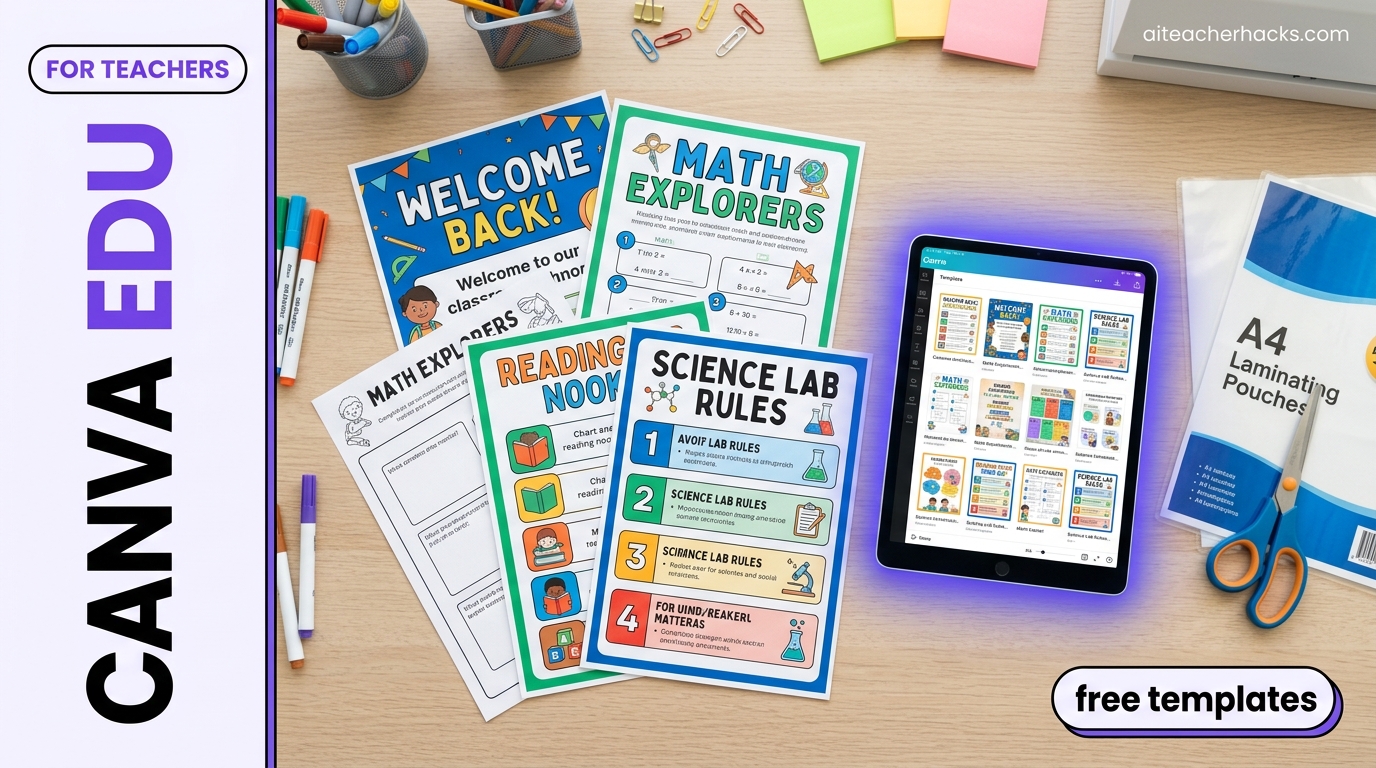
Yes — Canva Education is 100% free for eligible K–12 educators and students. Canva says its Education offering is intended to remain free for eligible primary and secondary educators, students, schools, districts, and qualified institutions. However, you need to meet Canva’s eligibility requirements and complete a short verification process.
In this review, I cover details like what Canva Education includes, who qualifies, how to get it free, how it compares to Canva Pro, what teachers can create, and whether it is actually worth using in the classroom in 2026.
I personally use Canva, Canva Pro, and Canva for Education, so this review is based on my own experience with these tools, along with Canva’s official information. I’ve found Canva particularly useful for creating visual teaching materials because its templates and built-in tools can save a lot of time compared with starting every design from scratch.
Table of Contents
Is Canva for Education Really Free for Teachers?
Yes. Canva Education is 100% free for eligible K–12 teachers and their students.
There are no subscription fees or trial payments for eligible users. Canva states that Canva Education is free for K–12 educators, their students, and qualified schools and institutions.
The important word is eligible.
Canva Education is currently available for K–12 (primary and secondary) education. It isn’t currently available through Canva Education for higher education teachers and institutions; Canva directs higher education users toward Canva for Campus.
So if you’re an eligible, currently active K–12 teacher, you can use Canva Education without paying for a regular Canva Pro subscription.
What Is Canva for Education?
Canva Education is Canva’s education-focused version of its visual design platform.
Instead of starting classroom projects from a blank page, teachers can use templates, drag-and-drop design tools, AI-powered features, presentations, videos, documents, and education-specific resources to create classroom materials quickly.
Teachers can use it to create:
- Lesson presentations
- Worksheets
- Classroom posters
- Certificates
- Infographics
- Educational videos
- Parent newsletters
- Student projects
- Digital portfolios
- Visual learning materials
Beyond design, Canva Education includes education-focused capabilities such as LMS integrations, assignment sharing, student collaboration, and thousands of educational templates.
During my use of Canva for Education, I noticed how easy it was to start with an education-focused template instead of designing everything from scratch. This can be particularly useful when you need to create classroom materials quickly without spending a lot of time on the initial design.
Who Is Eligible for Canva for Education?
This is one of the most important things to understand before signing up.
Canva Education is currently available to eligible K–12 educators, students, and qualified schools and institutions.
Who qualifies?
Eligible roles include:
- Certified K–12 teachers who are currently in a teaching position
- Certified K–12 school librarians
- Certified K–12 learning support assistants or teachers
- Qualified K–12 schools and school districts
- Government-recognized education departments and school systems
Canva’s eligibility requirements are specific, so it’s worth checking its official guidelines if you’re unsure whether your role qualifies.
Who doesn’t qualify?
Canva currently lists several groups that aren’t eligible for Canva Education, including:
- College and university teachers
- Higher education institutions and students
- Preschool or daycare assistants
- Private, volunteer, or online tutors
- Unlicensed homeschool educators
- Public librarians who don’t meet K–12 educator requirements
- Parents who aren’t themselves eligible educators
If you’re a university instructor, Canva Education isn’t the appropriate program; Canva directs higher education users toward Canva for Campus.
How Much Does Canva for Education Cost?
Canva Education is 100% free for eligible K–12 educators and students.
There is no monthly subscription fee for eligible users. Canva says the program is free with no paywalls for eligible K–12 educators, students, and qualified schools and institutions.
You also don’t need to purchase Canva Pro separately if you’re eligible for Canva Education.
Canva says most of its premium features are included in Canva Education, along with dedicated education features such as LMS integrations, assignment sharing, and educational templates.
Eligible users are prompted to re-verify their credentials every three years.
Canva for Education vs Canva Pro — What's the Difference?
This is one of the most common questions teachers ask.
Feature | Canva for Education | Canva Pro |
|---|---|---|
Designed for | K–12 education | General users |
Price for eligible users | Free | $18.00/mon |
Premium design features | Most included | Fully included |
Education templates | ✓ Yes | ✕ Not education-specific |
Classroomcollaboration tools | ✓ Yes | ✕ General-purpose |
LMS integrations | ✓ Yes | ✕ No |
Student assignment features | ✓ Yes | ✕ No |
Student access via teacher invite | ✓ Yes | ✕ No |
Eligibility verification required | ✓ Yes | ✕ No |
Is Canva for Education the same as Canva Pro?
No, not exactly.
For eligible K–12 teachers, Canva Education provides Canva Pro features at no cost, but Canva Education is a separate education-focused program rather than a regular Canva Pro subscription.
Canva Pro is a general-purpose paid plan for individuals and professionals.
Canva Education is an eligibility-based program for K–12 education that includes many premium Canva capabilities plus education-specific features such as classroom collaboration, assignment sharing, LMS integrations, and educational templates.
For an eligible K–12 teacher, Canva Education is usually the better choice because you can access the Education program without paying for a separate Pro subscription.
Key Features of Canva for Education
1. Education Templates
Canva Education includes thousands of education-focused templates for classroom use, including worksheets, lesson presentations, posters, certificates, newsletters, infographics, and more.
Starting from a template instead of a blank page can save teachers significant time when creating classroom materials.
2. AI Tools
Canva has expanded its AI capabilities for education, including tools that can help teachers create lesson materials, generate ideas, edit designs, translate content, and create visual resources.
For example:
- Magic Write — helps generate and improve written content
- Magic Design — helps create designs from prompts
- AI-powered editing tools — help modify and improve designs
- Dream Lab — Text-to-image AI for generating custom classroom visuals
- Translation tools — help adapt materials for different languages
For a detailed walkthrough, see our guide on how to use Canva Magic Write for teachers
3. Classroom Collaboration
Canva Education allows teachers and students to collaborate on classroom projects.
Teachers can use Canva for:
- Group presentations
- Digital storytelling
- Research projects
- Infographics
- Creative assignments
- Visual projects
Canva’s Education offering includes tools for sharing work and assignments with students.
4. LMS and Google Classroom Integrations
Canva integrates with classroom platforms including:
- Google Classroom
- Canvas
- Schoology
- ClassLink
- PowerSchool
- Infinite Campus
- Aeries
- Skyward
These integrations can make it easier to include Canva in an existing classroom workflow. For more tools that integrate smoothly with Google Classroom, see our Brisk Teaching review.
5. Safe-for-School Content
Student safety is especially important when using creative tools in education.
Canva says its Education platform uses multiple safeguards, including blocked search terms, automated scanning, and human moderation to help keep content appropriate for schools.
Canva also states that its dedicated education and district offerings are FERPA and COPPA compliant and committed to GDPR compliance.
6. Presentations and Visual Lessons
Teachers can create presentations using:
- Text
- Images
- Charts
- Videos
- Animations
- Icons
- Illustrations
- Audio
What I Liked: Canva makes presentation creation easier when you want something more visual than a basic slide deck. The combination of templates, graphics, images, and animations gives teachers plenty of options for making lessons more engaging.
7. Video Creation
Canva can also be used to create:
- Short instructional videos
- Presentation recordings
- Classroom introduction videos
- Student project videos
- Visual study materials
Teachers can combine video, text, graphics, animations, and other visual elements in one project.
How to Get Canva for Education Free
Want to see how Canva Education works? Watch Canva’s official video below for an overview of Canva Education and its classroom features.
Getting started is straightforward.
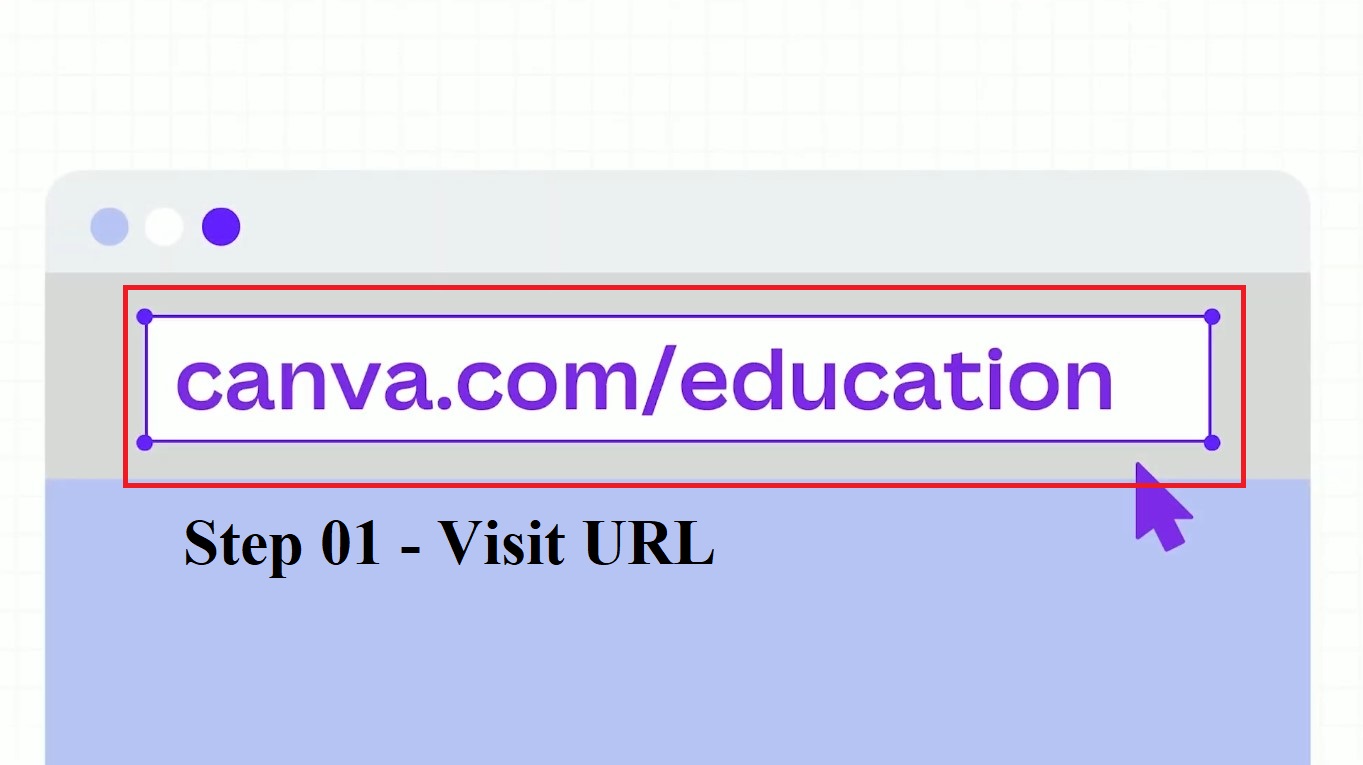
Step 1 — Go to Canva Education
Visit Canva’s Education and start the verification process.
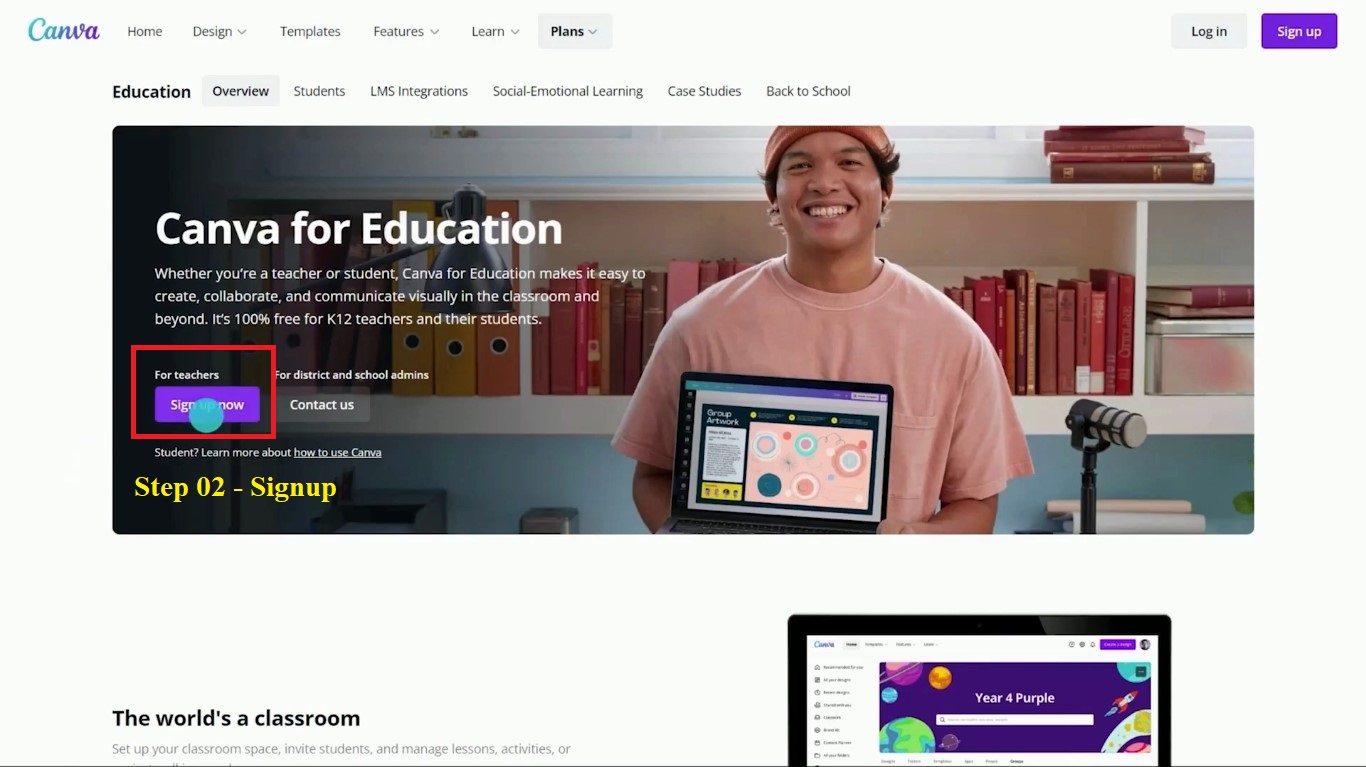
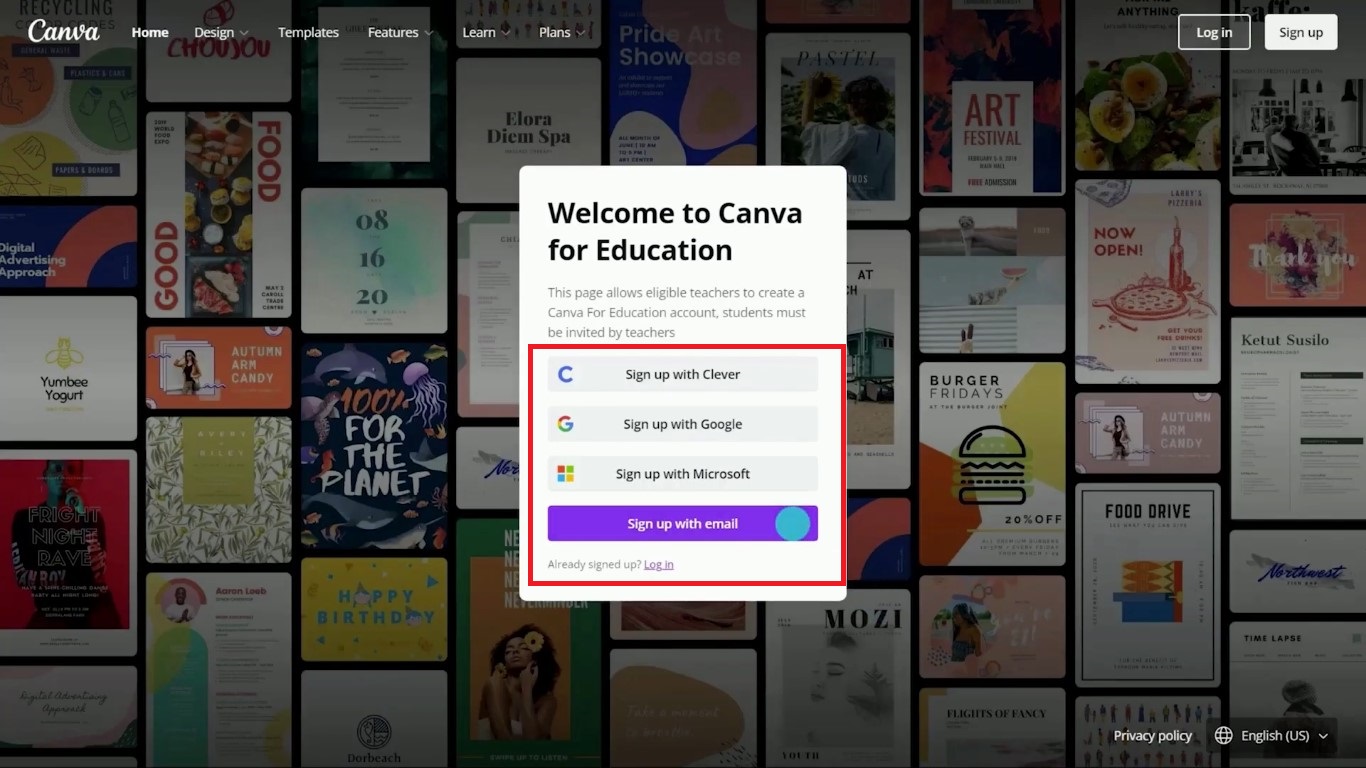
Step 2 — Create or sign in to your Canva account
If you already have a Canva account, you don’t necessarily need to create a new one.
Canva says existing users can follow the Education verification process and keep their existing designs.
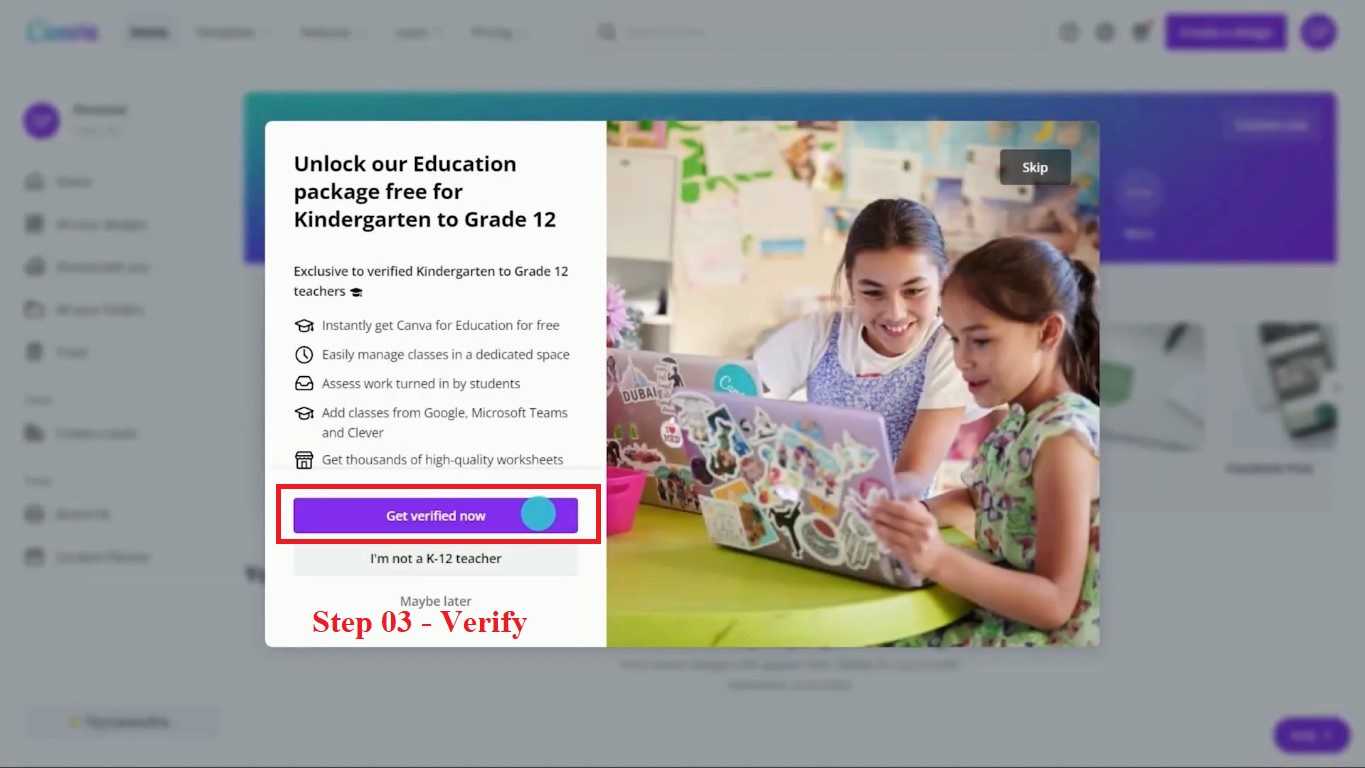
Step 3 — Verify your eligibility
If Canva recognizes your educational email domain, you can receive access immediately.
If your email isn’t automatically recognized, Canva allows eligible users to submit approved documentation, such as proof of teaching status or a school ID.
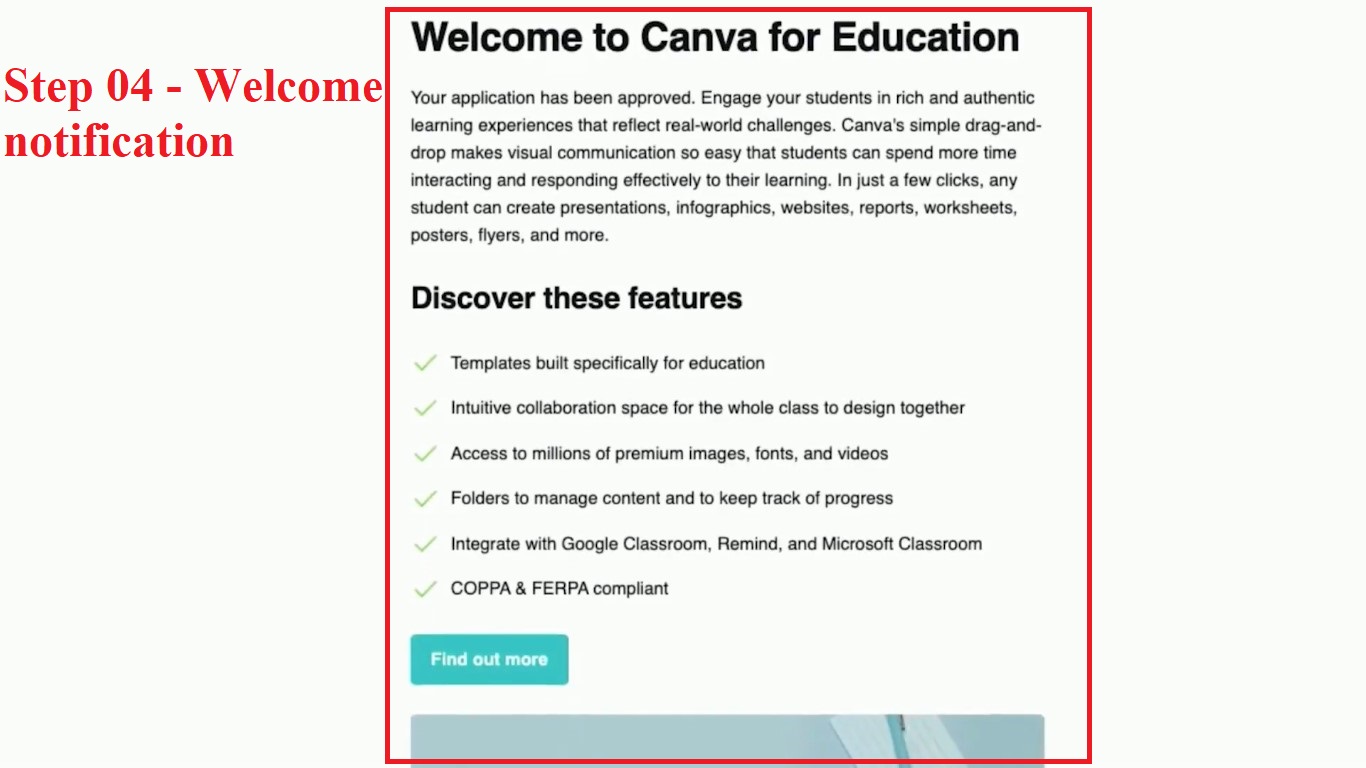
Step 4 — Wait for verification if required
Canva says applications submitted with supporting documents are reviewed within 48 hours.
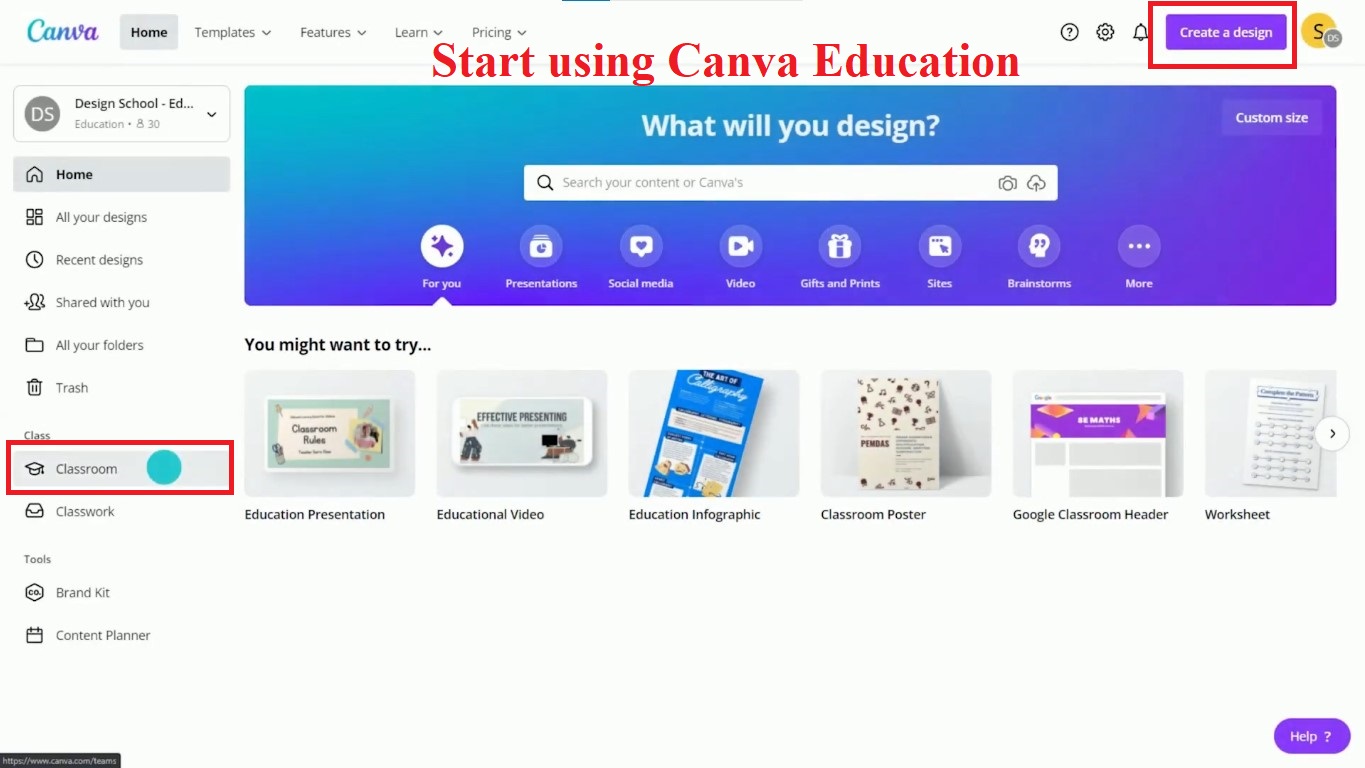
Step 5 — Start using Canva Education
Once verified, you can start creating classroom materials and, where applicable, invite students to join.
Can I Get a Canva for Education Invite Link?
If you’re searching for a Canva for Education free invite link, there’s an important distinction.
For teachers
Teachers should apply through Canva’s official Education verification process rather than relying on random invite links found online.
For students
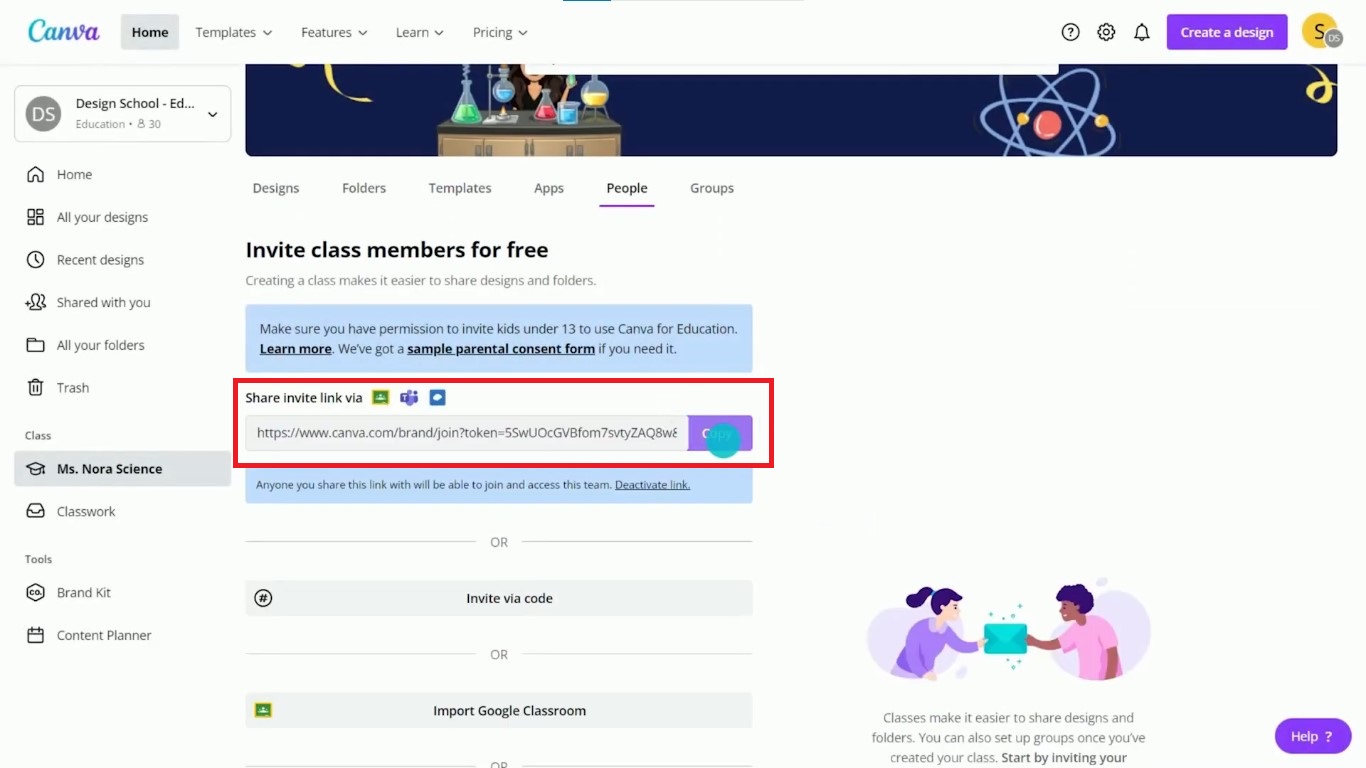
K–12 students can access Canva Education when invited by their teacher or school. Canva specifically says primary and secondary students need their teacher to invite them to join Canva Education.
So if you’re a student looking for access, the safest option is to ask your teacher or school to invite you. If you don’t have an invitation yet, you can also check Canva for Students
What Can You Create With Canva for Education?
Worksheets
Create visually appealing worksheets with headings, diagrams, illustrations, tables, and activity sections.
Presentations
Create lesson presentations with images, videos, animations, charts, and other visual elements.
Classroom Posters
Design:
- Classroom rules
- Vocabulary walls
- Motivational posters
- Anchor charts
- Subject displays
Certificates
Create certificates for:
- Student achievements
- Reading challenges
- Participation
- Awards
- Classroom milestones
Parent Newsletters
Create professional newsletters for classroom announcements, events, reminders, and student achievements.
Infographics
Turn complex topics into visual explanations that students can understand more easily.
Educational Videos
Create instructional videos, presentations, and multimedia learning resources.
Student Projects
Students can use Canva for presentations, digital portfolios, visual storytelling, group projects, and other creative assignments.
Canva for Education vs Google Slides
Feature | Canva for Education | Google Slides |
|---|---|---|
Free for eligible K–12 teachers | ✓ Yes | ✓ Yes |
AI design tools | ✓ Yes | △ Limited |
Education templates | ✓ Thousands | △ Limited |
Backgroud remover | ✓ Yes | ✕ No |
Video with captions | ✓ Yes | ✕ No |
Google classroom integration | ✓ Yes | ✓ Yes |
Works on chromebook | ✓ Yes | ✓ Yes |
Offline mode | ✓ No | ✓ Yes |
Use Canva Education when you want visually rich worksheets, posters, infographics, videos, or designed presentations.
Use Google Slides when you need a straightforward presentation and collaboration workflow.
For many teachers, the two tools can complement each other.
Canva for Education Pros and Cons
Pros
- 100% free for eligible K–12 teachers and students
- Thousands of education-focused templates
- Most premium Canva features included
- AI-powered tools
- Classroom collaboration
- Assignment sharing
- LMS integrations
- Google Classroom integration
- Safe-for-school content safeguards
- Keep existing designs when upgrading an existing Canva account
Cons
- Limited eligibility to qualifying K–12 education users
- Higher education users aren’t eligible for Canva Education
- Verification may be required
- Students need teacher or school access
- Some features may depend on school or administrator settings
- Large design library can feel overwhelming for beginners
- AI-generated content still needs human review
Is Canva for Education Worth It?
Yes — for eligible K–12 teachers, Canva Education is absolutely worth trying.
The biggest advantage isn’t simply that it’s free.
It’s the combination of:
- Professional design tools
- Education templates
- AI capabilities
- Classroom collaboration
- Assignment sharing
- LMS integrations
- Student-focused features
- Safe-for-school content
And because Canva Education is free for eligible K–12 educators, there’s little financial risk in trying it.
The main limitation is eligibility. If you’re a university instructor, private tutor, or another educator outside Canva’s current requirements, you’ll need to look at another Canva plan or product.
Canva is a design tool, not a full teacher AI platform. For lesson planning, IEP writing, and grading feedback, dedicated tools are still needed. Pair Canva Education with MagicSchool AI for lesson planning and IEPs, and Brisk Teaching for written feedback. For a full overview of the best free teacher tools, see our guide on free vs paid AI tools for teachers.
Our Rating: 4.8/5
Why I gave Canva for Education 4.8/5: I like how Canva brings education templates, visual design tools, presentations, videos, and AI features together in one platform. From my experience using Canva and Canva for Education, it makes creating classroom materials much easier and faster. Overall, though, I think it is an excellent option for teachers who want to create engaging visual materials without needing advanced design skills.
Verdict: If you’re an eligible K–12 teacher, start with Canva Education before paying for Canva Pro.
Want to compare it with the other free-for-educators programs? See our Google Gemini for Teachers review, ChatGPT for Teachers review, Claude for Teachers review, and Microsoft Copilot for Teachers review — or see how it stacks up directly against its closest design-tool rival in our Canva vs Adobe Express for Teachers comparison.
Also thinking about your own resume? See our guide to free AI certifications for teachers.
Want to try Canva’s video tools specifically, alongside other options? See our best AI video tools for teachers roundup.
Canva’s Magic Design can also build a full slide deck from a prompt — see how it stacks up against Gamma, Prezi, and other dedicated AI presentation tools for teachers.
Frequently Asked Questions
Yes. Canva Education is 100% free for eligible K–12 educators, students, and qualified schools and institutions.
Visit Canva Education, create or sign in to your account, and complete the verification process. A verified educational email can provide immediate access; otherwise, Canva may ask for approved documentation.
Is Canva Pro free for teachers?Yes. K–12 students can use Canva Education when invited by an eligible teacher or school.
Canva is a general-purpose design platform for anyone, while Canva for Education is specifically designed for eligible K–12 teachers, students, and schools. Canva for Education includes many premium Canva features plus education-focused tools such as classroom collaboration, assignment sharing, educational templates, and LMS integrations.
If Canva can verify your educational email, access can be immediate. If you submit supporting documents, Canva says it reviews applications within 48 hours.
Canva says most premium Canva features are included, along with education-specific tools such as educational templates, LMS integrations, assignment sharing, and classroom collaboration.
Yes. Canva says existing users can follow the Education verification process and keep their existing designs.
Canva says its Education platform uses content filtering and moderation designed for school and student use. Canva also states that its dedicated education offerings are FERPA and COPPA compliant and committed to GDPR compliance.
Yes. Google Classroom is among the classroom tools Canva lists as integrations, alongside platforms such as Canvas and Schoology.
Teachers should use Canva’s official verification process. K–12 students receive Canva Education access through their teacher or school.
Eligible K–12 teachers can get Canva’s Pro features for free through Canva Education. Canva Education is 100% free for eligible K–12 educators, and Canva says its teacher offering includes the Canva Pro features, along with education-specific tools such as classroom collaboration, LMS integrations, and educational templates.
You don’t need to purchase a separate Canva Pro subscription if you’re eligible for Canva Education. You just need to complete Canva’s Education verification process.
2 Responses