If you have ever made a worksheet in Canva at 11pm on a Sunday — hand raised — you already know Canva saves time on design. What most teachers do not realize is that Canva now has a full suite of AI tools built directly into the platform that most teachers using Canva for Education have never touched.
This guide covers exactly how to use Canva Magic Write for teachers in 2026 — what it does, how to access it, the best classroom uses, what the other Magic Studio AI tools do, and where Canva’s AI genuinely falls short compared to dedicated teacher tools.
Table of Contents
What Is Canva Magic Write?
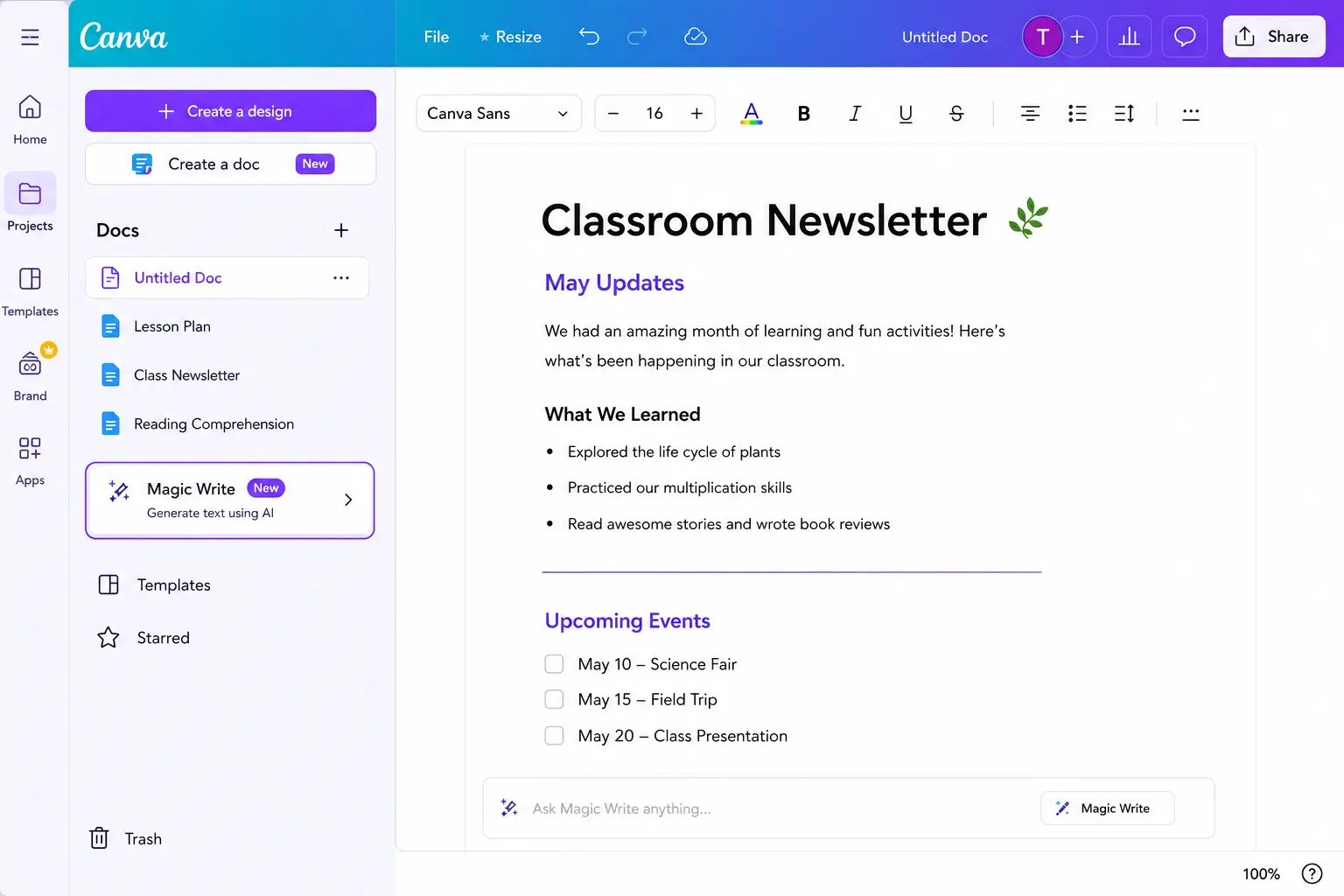
Magic Write is Canva’s built-in AI text generator that lets you produce written content directly inside a Canva document using a simple prompt. You can generate, retry, and insert AI-written text into your design in seconds without leaving the Canva editor.
The key advantage over tools like ChatGPT is exactly that — you never leave Canva. You are designing a worksheet, you need a paragraph of text, you hit Magic Write, type your prompt, and the text appears directly in your design. No switching tabs. No copy-pasting. No formatting lost in translation.
Magic Write is Canva’s built-in AI writing assistant. Start with one of Canva’s templates, or a blank design, and use Magic Write to generate a sentence, paragraph, list, or outline to use as a starting point.
Canva Magic Write vs ChatGPT — Which Should Teachers Use?
Use ChatGPT or MagicSchool AI for content generation. Use Canva Magic Write when you are already in Canva designing something and need text to fill it — the no-tab-switching advantage is real and saves meaningful time in a design workflow.
Feature | Canva Magic Write | ChatGPT |
|---|---|---|
Works inside your design | ✓ Yes | ✕ No |
Knowledge cutoff | △ Mid 2021 | ✓ More current |
Long-form content | △ 2,000 word limit | ✓ Much longer |
Lesson planning depth | △ Basic | ✓ Excellent |
IEP and SPED tools | ✕ No | △ With prompts |
Free for teachers | ✓ Yes | ✓ Yes |
No tab switching | ✓ Yes | ✕ No |
Visual output | ✓ Yes | ✕ Text only |
Is Canva Magic Write Free for Teachers?
Yes — with important nuance.
Canva for Education is completely free for verified K-12 teachers. It includes all Pro features plus education-specific templates. Verify at canva.com/education with your school email.
However: Canva for Education Admin and Teacher accounts get up to 500 Magic Write uses per billing month (this resets on your billing date, not the calendar month). Magic Write is off by default for student accounts — district administrators can choose to enable it for students, and Canva’s broader AI safety policy requires students under 13 to only access AI features inside a teacher-supervised Canva Education environment.
What this means practically: Most Magic Write features are available to verified teachers on Canva for Education. Some advanced Magic Studio features depend on your district’s settings. If a feature is not showing up, check with your IT administrator — your district may need to enable it.
How to Access Magic Write in Canva — Step by Step
Step 1 — Open Canva and create a new design. Magic Write works best in Canva Docs, Presentations, and Whiteboards.
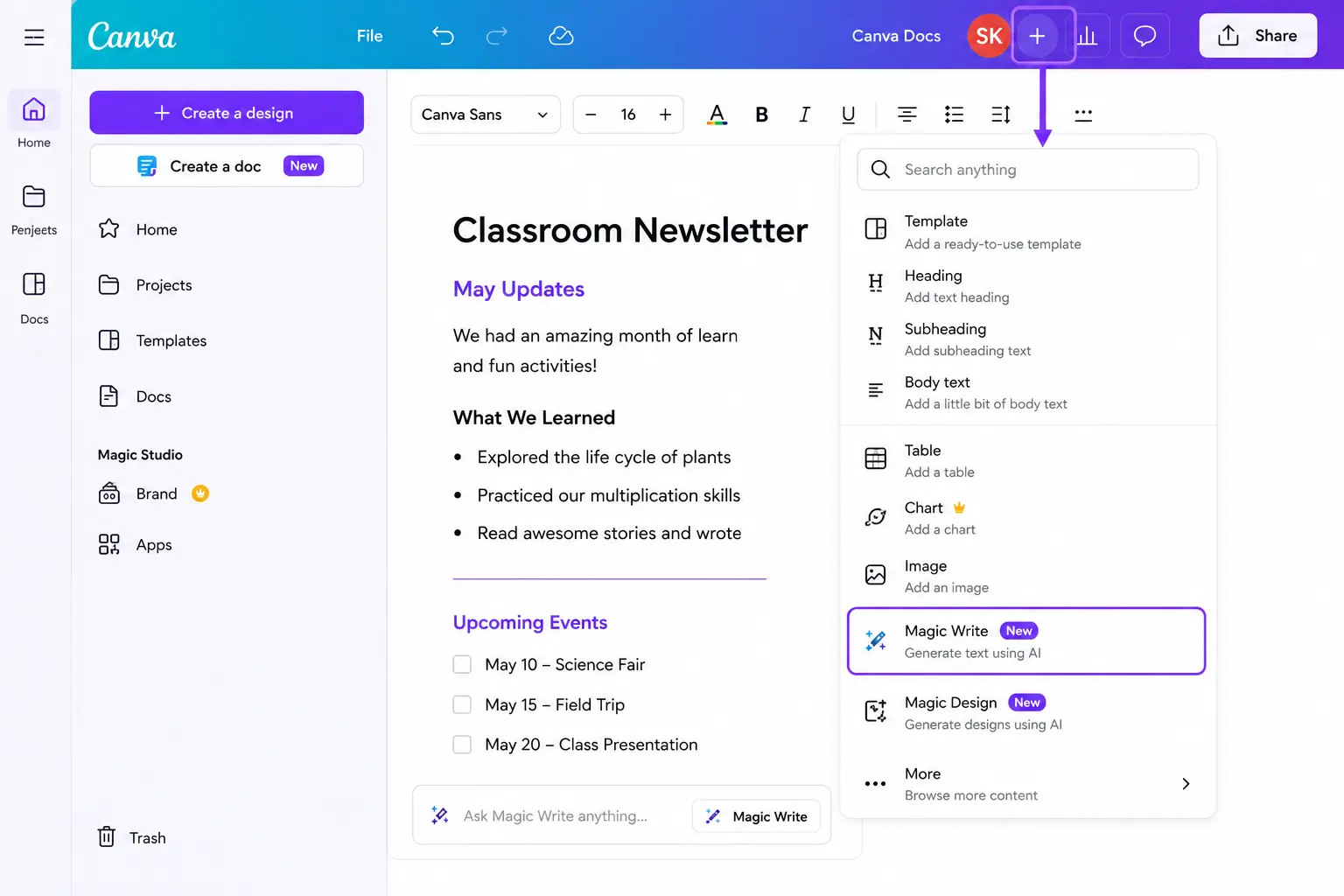
Step 2 — Click the add icon on the right side of the page.
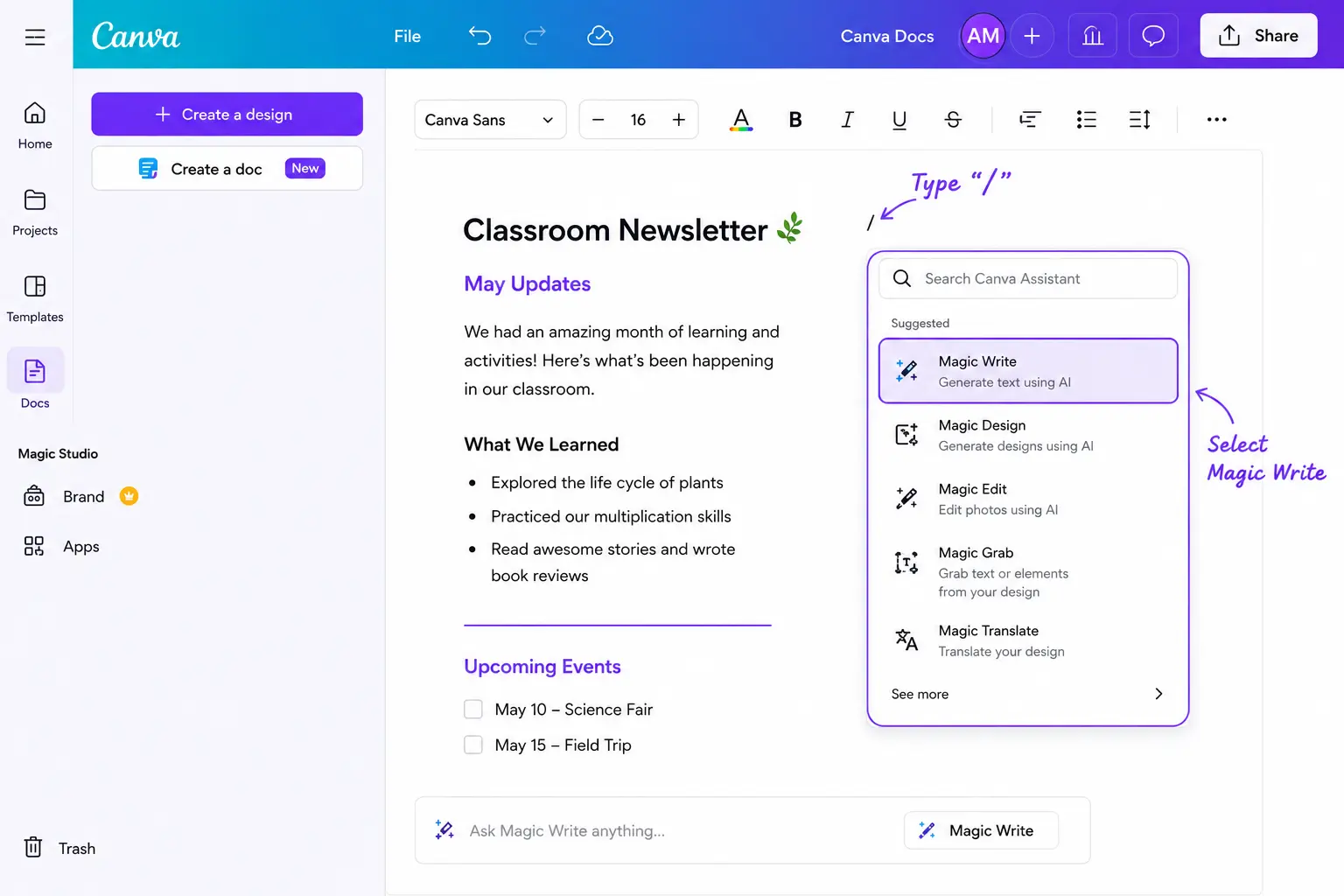
Step 3 — Alternatively, type the “/” slash command and select Magic Write from the menu.
Step 4 — Enter or describe the text you want to generate in the prompt field.
Step 5 — Click Generate to proceed — results will be produced in real time.
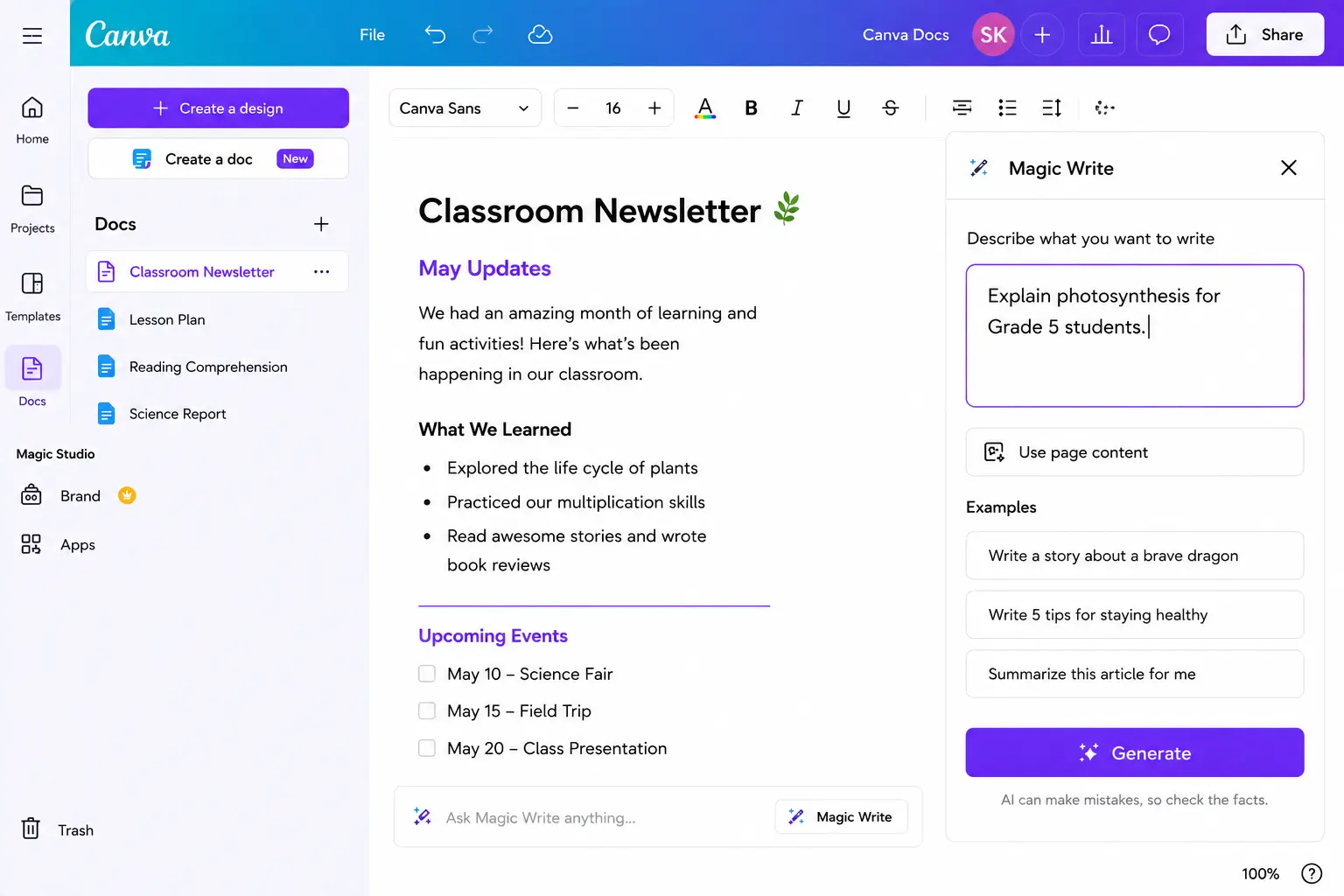
Step 6 — Once satisfied, click Insert to add the generated text to your design or Copy to use it elsewhere.
Quick tip: You can also type “/” to open the Canva Assistant shortcut and select Magic Write from the list of available tools. This is the fastest access method once you are inside a document.
Important limitation to know upfront: Magic Write does not generate full slides or entire presentations — it only helps with the text part. It is a text generation tool inside Canva, not a full presentation builder.
What Magic Write Can Do for Teachers — Best Classroom Uses
1. Worksheet Text Generation
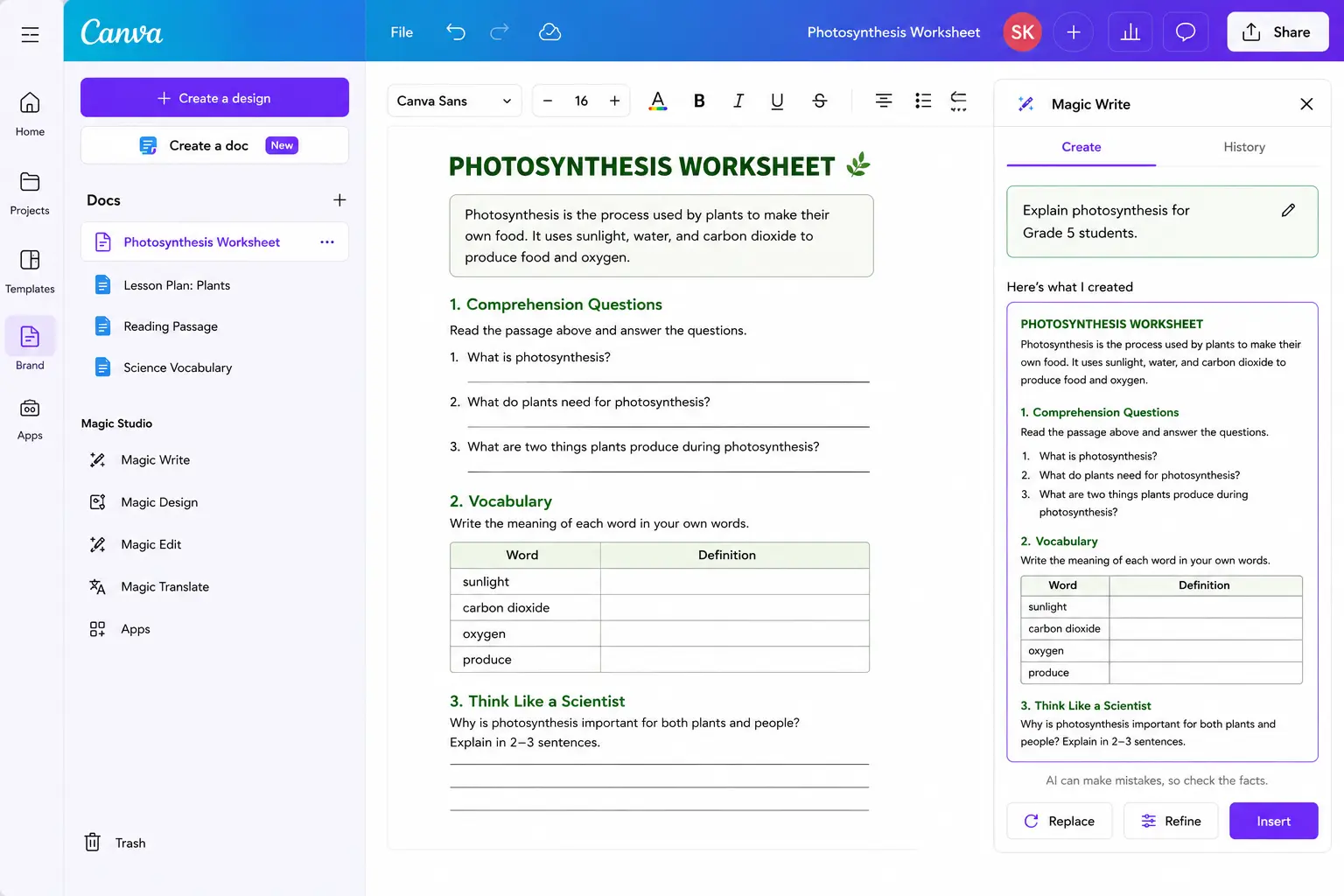
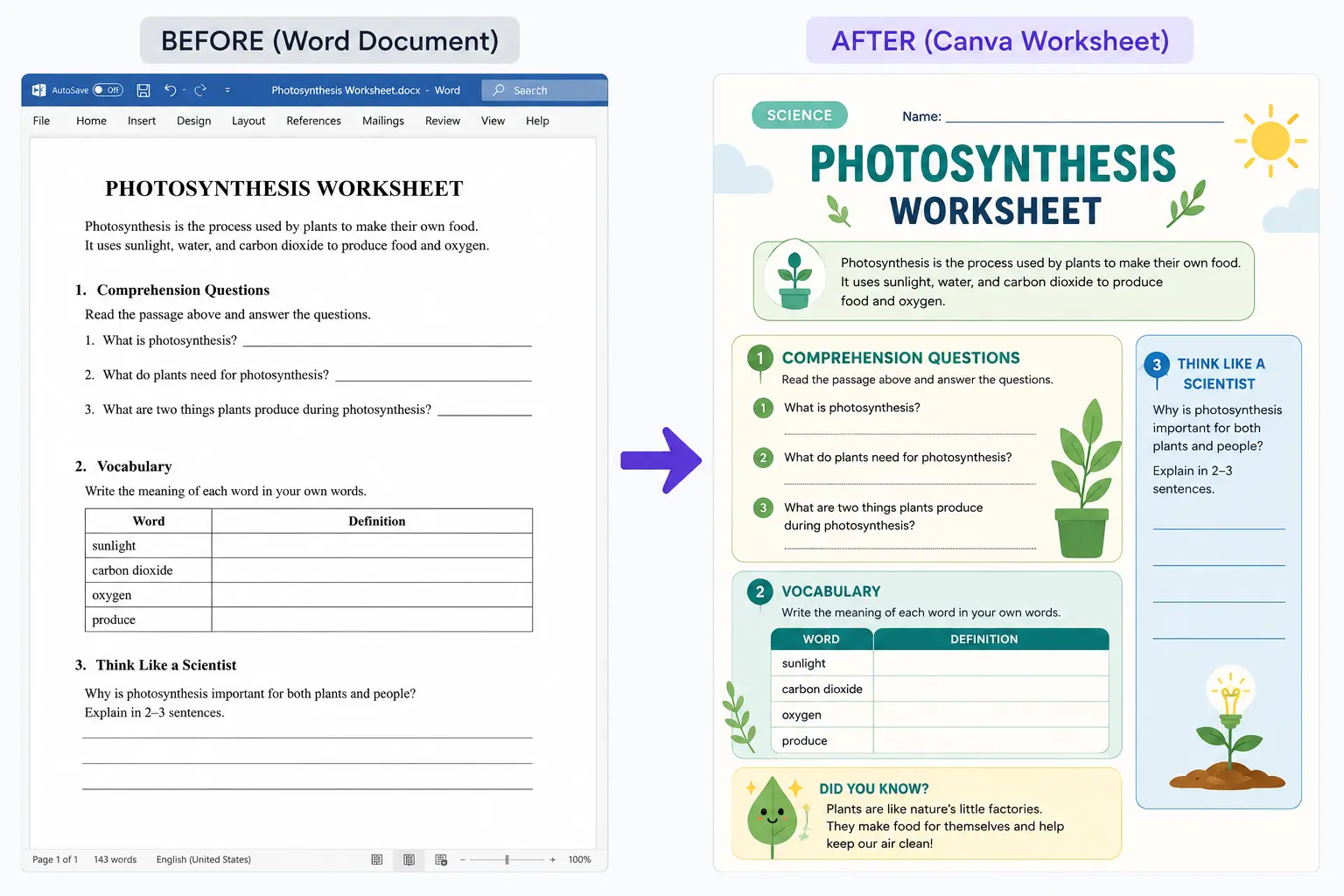
This is the most practical daily use for teachers. You are building a worksheet on photosynthesis, you need a short reading passage, three comprehension questions, and a vocabulary definition section.
Example: You are making a slide about photosynthesis. Click Magic Write, type “Explain photosynthesis in 2 sentences for 5th graders,” and it generates text right in the slide.
Apply the same workflow to worksheets — generate the reading passage, comprehension questions, and vocabulary section all inside the same Canva document. No switching to ChatGPT and back.
Best prompts for worksheet generation:
- “Write a 100-word reading passage about [topic] for [grade level] students. Use simple vocabulary.”
- “Generate 5 comprehension questions for a [grade level] reading on [topic]. Include 2 recall questions and 3 higher-order thinking questions.”
- “Write definitions for these vocabulary words in student-friendly language for [grade level]: [word list].”
- “Create 10 fill-in-the-blank sentences using these vocabulary words: [word list].”
2. Lesson Plan Generation Inside Canva
Teachers can leverage Canva’s Magic Write to create lesson plans, worksheets, and resources, allowing for quick and efficient editing and the ability to share and collaborate on materials with colleagues.
Use the Canva Docs format for lesson plans — it gives you the most Magic Write functionality in a document layout. Generate your lesson plan structure, then immediately turn it into a shareable visual document without leaving the platform.
Lesson plan prompt:
“Create a [X]-minute lesson plan for [grade level] students on [topic]. Include learning objective, hook activity, main instruction, guided practice, exit ticket, and materials list.”
3. Parent Newsletter Drafting
Parent newsletters are one of the most time-consuming recurring writing tasks for teachers. Magic Write handles the first draft inside the same Canva newsletter template you already use for design.
“Write a friendly monthly classroom newsletter for parents of [grade level] students. This month we studied [topics]. Upcoming events include [events]. One tip for supporting learning at home: [tip]. Keep it under 250 words and use a warm tone.”
Generate the text, adjust the design, export as PDF — all in one workflow. For more parent communication strategies, see our guide on AI for parent communication.
4. Presentation Speaker Notes
By selecting Using page content, Magic Write will create notes based on the presentation’s content. By selecting Custom prompt, you can type your own prompt for Magic Write.
This is one of the most underused features. Build your presentation slides, then use Magic Write to generate speaker notes for each slide automatically from the slide content. For teachers who present frequently, this saves significant preparation time.
5. Classroom Poster Text
Need a classroom expectations poster, a vocabulary wall, or an anchor chart? Magic Write generates the text content and Canva handles the design in the same workflow.
“Write 5 positive classroom expectations for [grade level] students using ‘we’ language. Each expectation should be one short sentence.”
“Generate 10 key vocabulary words and student-friendly definitions for a unit on [topic] at [grade level].”
6. Student Project Instructions
Writing clear, student-friendly instructions for projects and assignments is harder than it looks. Magic Write drafts them fast.
“Write clear step-by-step instructions for a [grade level] student project on [topic]. Include what students will create, the steps to complete it, materials needed, and how it will be graded. Use simple language a [grade level] student can follow independently.”
The Full Canva Magic Studio — Beyond Magic Write
Magic Write is just one part of Canva’s broader AI toolkit, which keeps expanding. Here is what the other tools most useful to teachers do:
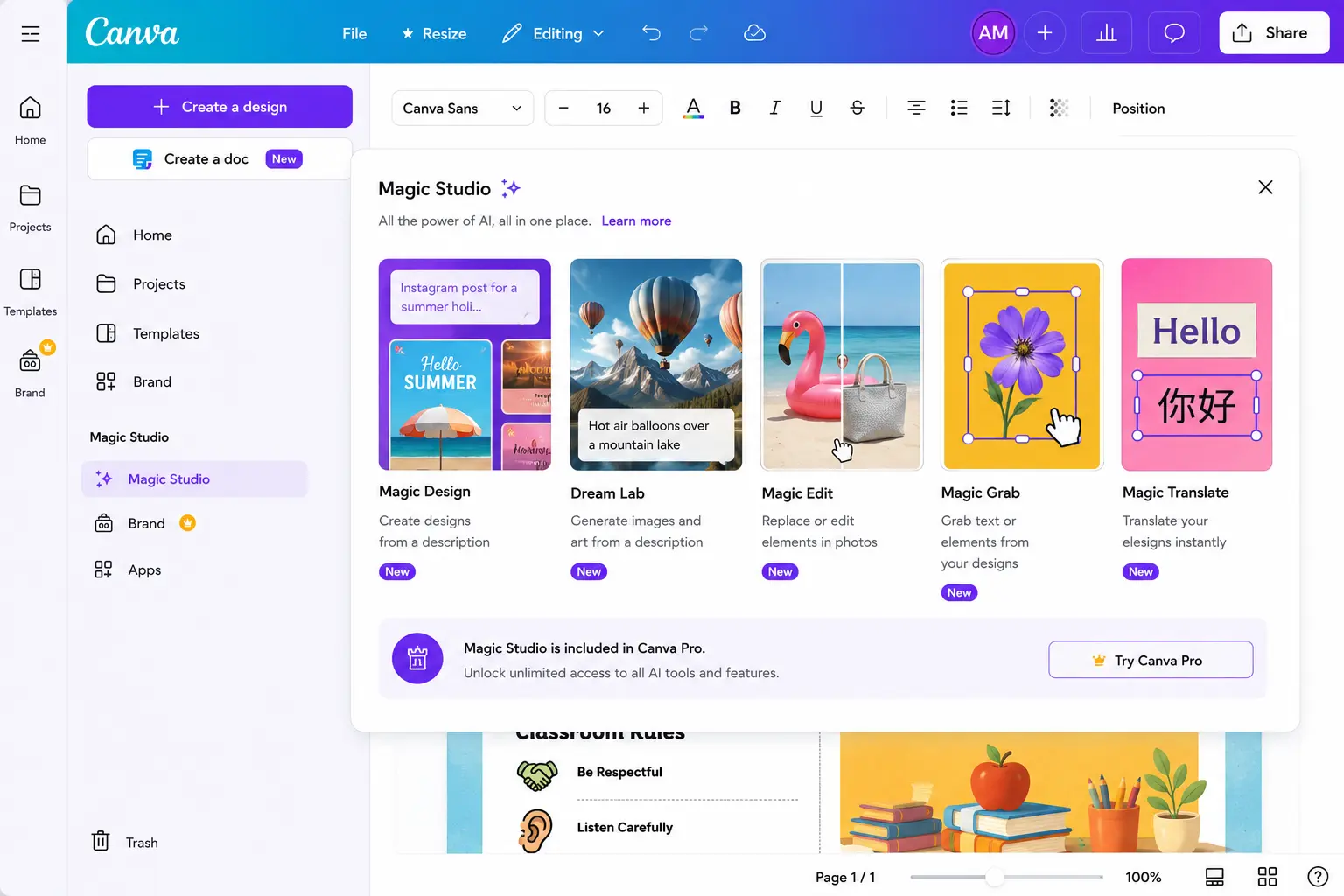
Magic Design — Describe what you want to create and Canva generates a complete design template automatically. Useful for creating new classroom materials from scratch without browsing templates.
Dream Lab (formerly Magic Media) — Text-to-image generation. Type a description and Canva generates a custom image. Availability and usage limits vary by Canva plan and change periodically, so check your current account rather than relying on a fixed number. Useful for teachers who need custom illustrations for worksheets or presentations without using stock photos.
Magic Edit — Select any object in an image and replace it with something else using a text prompt. Useful for modifying existing classroom images.
Magic Grab — Separate elements in an image to move or edit them independently. Useful for remixing visual content for classroom materials.
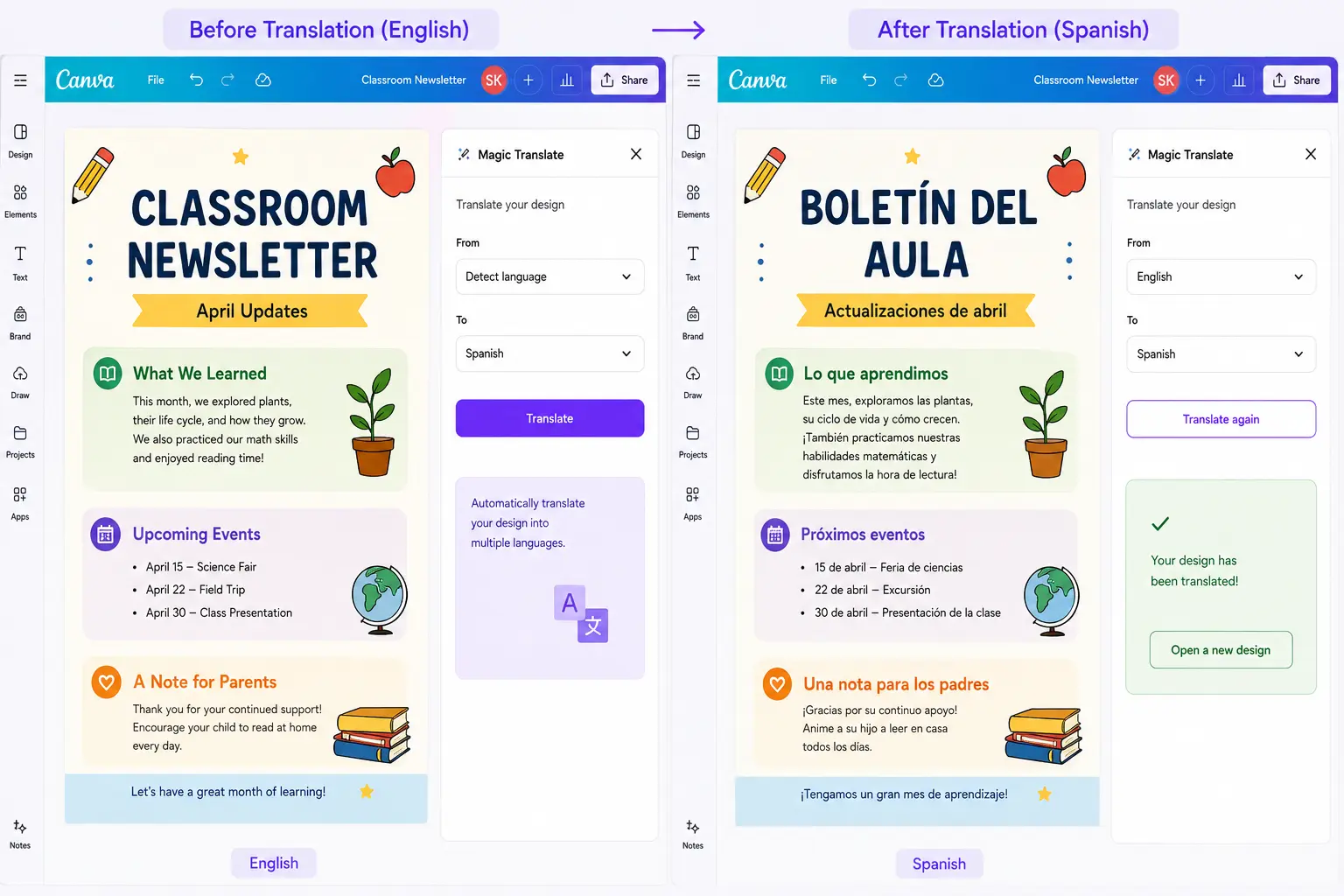
Magic Translate — Canva Education’s built-in translation tool translates entire designs including text into another language — useful for creating multilingual versions of newsletters, worksheets, and parent communication.
Important Limitations of Canva Magic Write
Magic Write is useful for generating and editing text inside a Canva design, but there are specific things it is not built for. Quick answer:
- Full presentation creation — it writes text, it doesn’t build the slide deck or layout for you
- Complex lesson planning — it can draft lesson-plan text, but it isn’t a dedicated planning tool the way MagicSchool AI is
- IEPs and special-education planning — not designed as an IEP or SPED platform
- Up-to-date factual research — generated information should always be verified, especially for anything time-sensitive
- Replacing your judgement — it drafts; you still check accuracy, age-appropriateness, tone, and fit
The detail behind each of those:
This section matters. Most guides about Magic Write skip the honest limitations entirely.
Current-information limitation: Magic Write should not be treated as a live research tool. For current events, changing policies, recent scientific developments, or any other time-sensitive information, verify the facts before using the generated text with students.
Usage and length limits: Free and paid accounts have different usage limits, and very long prompts or outputs can get cut off mid-sentence. Canva’s limits can change, so check your current account rather than relying on a fixed number — and for long-form content, generate it in sections.
Not a replacement for dedicated teacher AI tools: Canva is not a replacement for MagicSchool or ChatGPT — it is the visual layer. Use MagicSchool or ChatGPT to generate the content, then use Canva to make it look professional. Magic Write is weaker than ChatGPT for complex lesson planning and completely unable to handle IEPs, behavior plans, or differentiated instruction. Those stay with MagicSchool AI. MagicSchool
Text only — not a full presentation builder: Magic Write generates text inside your design. It does not generate slides, layouts, or full presentations. It works best in Canva Docs, Presentations, and Whiteboards — and is not available in every template type.
First draft quality: Treat Magic Write as a second-pass editor, never a first-draft writer — the giveaway of AI-generated content is unedited first-draft copy. Always review and personalize before using with students or sending to parents.
My Recommended Workflow: Where Canva Magic Write Fits
The most effective workflow for teachers combines Canva Magic Write with other AI tools rather than using it in isolation:
Step 1 — Generate content with a specialist tool:
Use MagicSchool AI for lesson plans, ChatGPT for detailed prompts, or Diffit for leveled readings.
Step 2 — Design with Canva:
Open Canva for Education, choose your template — worksheet, newsletter, poster, presentation.
Step 3 — Use Magic Write for in-design text:
For any text you need directly inside the design — short passages, instructions, definitions, captions — use Magic Write rather than switching tabs.
Step 4 — Use Magic Translate for multilingual families:
Duplicate your design, run Magic Translate for the languages your families speak. Done in seconds.
Step 5 — Export and distribute:
PDF for print, link for digital sharing, Google Classroom for assignments.
Total extra time added by Magic Write in this workflow: near zero. It fits into what you already do in Canva rather than adding a new platform to learn.
Mistakes Teachers Make with Canva Magic Write
Using outdated content without checking. Magic Write should not be treated as a live research tool. For any factual content — especially science, health, or current events — verify accuracy before using with students.
Expecting it to replace dedicated teacher AI tools. Teachers who drop ChatGPT or MagicSchool AI entirely for Magic Write find themselves limited quickly. Magic Write is for text inside designs — not a full lesson planning or IEP platform.
Not trying Magic Translate. This is the most underused feature for teachers with multilingual families. Magic Translate can quickly produce a translated version of a design for multilingual classroom and family communication — review it before sending anything important.
Not enabling it for students when appropriate. Magic Write is off by default for student accounts, but Canva Education administrators can turn it on. For older students working on research projects or presentations it is a legitimate writing tool — but Canva’s AI safety policy also requires students under 13 to use it only inside a teacher-supervised Canva Education environment, not through general Canva AI access.
Accepting first-draft output without personalizing. Magic Write drafts fast. That speed means the output needs a human review pass before it goes to students or parents. A 2-minute review prevents generic-sounding content from reaching families.
Final Verdict — Is Canva Magic Write Worth Using?
Rating: 8/10 — Not the most powerful AI, but the most practical because it is already in your workflow.
That is the right frame. Magic Write is not ChatGPT. It is not MagicSchool AI. It does not do IEPs or lesson plan generation at depth.
What it does is eliminate the friction of switching between your writing tool and your design tool — which is where most teacher time actually gets lost. When you are already in Canva making a worksheet and you need three comprehension questions, Magic Write is the fastest tool available. That specific advantage, in that specific workflow, is worth knowing about.
Canva for Education is free for all verified K-12 teachers. Magic Write is included. There is no reason not to start using it today.
For the complete overview of Canva for Education features beyond Magic Write, read our full Canva for Education review.
We’ve tested Canva Magic Write while creating classroom worksheets, presentations, and newsletters. In our experience, it’s best used for drafting short content directly inside Canva for teachers.
Want to compare Canva Magic Write side by side against any of 100+ other AI tools? Try our AI tool comparison tool.