Table of Contents
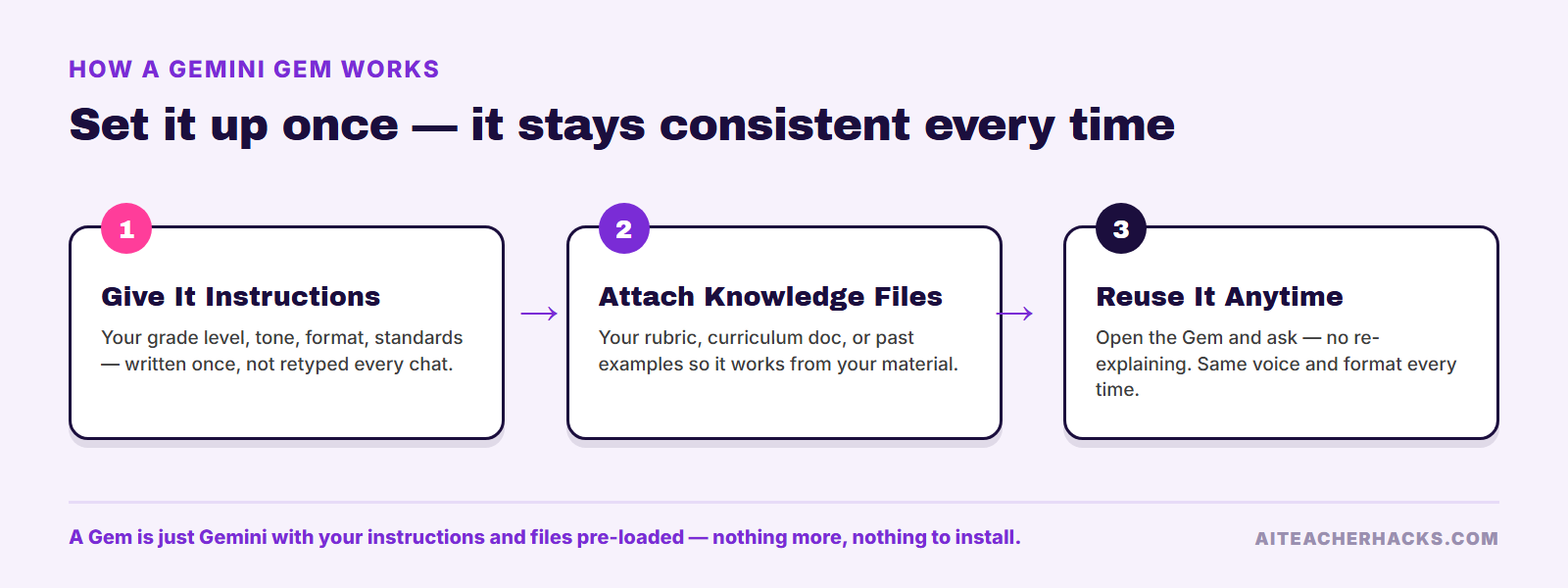
Most teachers use Gemini the same way they use ChatGPT — open a blank chat, retype the same instructions, get an answer, close the tab. A Gem skips the retyping. You set up your grade level, tone, and format once, and every time you open that Gem it already knows how you want the output to look.
In this guide: what a Gem actually is, who at your school can use one (the eligibility rules are more specific than they look), how to build your first one in about two minutes, five ready-to-paste templates for common teacher tasks, and where a Gem stops being enough and a dedicated tool like MagicSchool or Brisk makes more sense.
What Is a Gemini Gem, Actually?
A Gem is a custom version of Gemini that you configure once with instructions — and optionally reference files — so it behaves the same way every time you open it, instead of you re-explaining your context in every new chat.
Under the hood, a Gem isn’t a different AI model. It’s the same Gemini, given a standing set of instructions (and, if you attach them, files it can pull from) before you ever type a prompt. You write instructions describing how the Gem should behave, respond, and process input, and it follows them going forward.
Gems are free on every Gemini plan, including a school Google account, so there’s no separate subscription to unlock this feature.
Who Can Actually Use Gems at Your School
This is the part most “how to use Gemini Gems” guides skip, and it matters more for teachers than almost anyone else using Gemini.
If your school runs Google Workspace for Education, Gems are bundled in free with every paid Workspace for Education edition — the Gemini app, Gems, NotebookLM, and “Help me write” in Docs are Core Services at no extra cost.
The age split matters:
- Teachers (18+) get full access to Gems and the wider Gemini app.
- Gemini in Classroom specifically is only available to Workspace for Education users 18 and older.
- Students 13 and older can use the core Gemini app with age-appropriate safeguards, but students under 18 either get blocked at sign-in or fall back to a limited student experience — no image generation, no long-context research — unless your school’s admin turns those on in the Google Admin console.
Practically: as the teacher, you’re almost certainly cleared to build and use Gems right now. Whether your students can use the Gems you build depends on your district’s admin settings, not on anything you control from your own account.
How to Build Your First Gem (Step by Step)
It takes about two minutes the first time. Nothing to install.
- Go to gemini.google.com. Sign in with your school Google account if your district has Workspace for Education, or your personal Google account if not.
- Open Gems. On the left sidebar, click Explore Gems, then New Gem.
- Name it and write the instructions. Give it a name you’ll recognize (“6th Grade Lesson Planner,” not “Gem 1”), then describe exactly how it should behave: grade level, tone, output format, what to always include and what to avoid.
- Attach knowledge files (optional, worth doing). Upload your rubric, a sample lesson plan, your grading criteria, or your district’s curriculum doc. The Gem references these instead of guessing at your standards.
- Pick a default tool if one applies. Options include Create image, Canvas, Deep Research, Create music, and Guided Learning (built for tutoring-style interactions — worth trying for a student-facing study Gem).
- Preview, then save. Type a test prompt in the preview pane on the right. If the output matches what you wanted, click Save. If not, adjust the instructions and preview again — this is the only real trial-and-error step.
5 Ready-to-Use Gem Templates for Teachers
Paste any of these into the instructions field as a starting point, then swap in your own grade level and details. Treat them as a first draft, not a final version — the more specific you make the instructions, the more consistent the output.
1. The Lesson Plan Gem
You are a lesson-planning assistant for a [grade level] [subject] teacher. Every lesson plan you write follows this format: Objective, Standards alignment, Warm-up (5 min), Direct instruction, Guided practice, Independent practice, Exit ticket. Keep language grade-appropriate. Never invent a standard code — ask me for it if I don’t provide one. Default lesson length: [45] minutes unless I say otherwise.
Use it for a first draft you edit, not a finished plan — the same caution that applies to any AI lesson generator.
2. The Parent Email Gem
You write parent/guardian emails for a [grade level] teacher. Tone: warm, direct, never defensive. Structure: one-line context, the specific issue or update, a clear next step or ask, a friendly close. Keep it under 150 words unless I ask for more detail. Never include a student’s full name in the subject line.
3. The Feedback & Rubric Gem
Attach your actual rubric as a knowledge file, then use:
You give written feedback on student work using the attached rubric. For each submission I paste in, identify what meets each criterion, what’s missing, and one specific, actionable next step — not generic praise. Match the reading level to [grade level].
4. The Differentiation Gem
Take any text, worksheet, or reading passage I paste in and rewrite it at three levels: below grade level, on grade level, and above grade level, for [grade/subject]. Keep the core content and vocabulary terms consistent across all three versions — only adjust sentence complexity and scaffolding.
5. The Bell-Ringer / Warm-Up Gem
Generate a 5-minute warm-up activity for [subject/grade] tied to [today’s topic, which I’ll tell you each time]. Format: one question or prompt, no more than 3 sentences of setup, and an answer key. Vary the question type — don’t default to multiple choice every time.
Gems vs a Dedicated Teacher AI Tool — Should You Bother?
A Gem is free and lives inside a tool you already have open. A dedicated platform like MagicSchool AI or Brisk Teaching costs money (or has a capped free tier) but comes with the instructions already written for you. Here’s the honest trade-off:
Gemini Gem | MagicSchool AI | Brisk Teaching | |
|---|---|---|---|
Cost | Free (needs Gemini access) | Free plan / Plus $8.33/mo | Free plan / paid tiers |
Setup effort | You write the instructions | Pre-built tools, ready instantly | Pre-built, browser extension |
Best at | One task you can describe precisely | Broad library, 80+ built-in tools | Feedback & Google Doc workflows |
Persistent memory | Yes, via saved instructions + files | Yes, account-based | Yes, account-based |
Works inside Docs/Classroom | Depends on the tool you enable | Google Classroom integration | Chrome extension inside Docs/Classroom |
Good fit if… | You already live in Gemini and want one narrow assistant | You want a ready-made toolkit, no prompt-writing | You mainly need feedback and doc-based workflows |
Neither replaces the other. A Gem is the cheapest way to get a consistent, narrow assistant for one task you can describe clearly. A platform like MagicSchool or Brisk is worth the cost once you want a dozen different tools without writing the instructions for each one yourself. See our full MagicSchool AI review and Brisk Teaching review if you’re deciding between them.
Limits and Things to Watch
A Gem only knows what you tell it and what you attach — it doesn’t browse the open internet unless you’ve turned on a tool that allows it, and it doesn’t know anything about your specific students unless you type that in.
Don’t upload files containing identifiable student data (full names, grades, IEP details) into a Gem’s knowledge files on a personal Google account — stick to your school account, and check your district’s AI and data policy first if you’re unsure.
A Gem you build on your personal Google account doesn’t automatically appear if you switch to your school account, and vice versa — they’re tied to the account you were signed into when you created them.
Knowledge files have a practical size limit; a single rubric or lesson template works fine, but don’t expect a Gem to ingest an entire semester’s worth of documents and reference all of it reliably.
Frequently Asked Questions
Yes. Gems are included on every Gemini plan, including a free personal Google account and a school Google Workspace for Education account — there’s no separate charge to create or use one.
Yes, if your school has Google Workspace for Education. Gems are bundled into every paid Workspace for Education edition at no extra cost. Whether Gemini in Classroom specifically is turned on depends on your district’s admin settings and the 18+ age requirement.
It depends on age and what your district’s admin has enabled. Students 13 and older can generally use the core Gemini app with safeguards, but building and using Gems as a student may be limited or disabled by your school’s Google Admin console — check with your IT department before assigning it as student work.
A Gem remembers the instructions and knowledge files you gave it when you built it — that stays the same every time you open it. It does not automatically remember details from one conversation to the next within that Gem unless you tell it again or it was part of what you attached.
Gemini supports sharing Gems, though availability can depend on your Workspace for Education settings. If you can’t share directly, the fastest workaround is copying your instructions text so a colleague can paste it into their own new Gem.
A Gem itself lives inside the Gemini app, not inside Classroom directly. Gemini’s Classroom-specific features are a separate integration with their own 18+ requirement — a Gem you build is something you use in the Gemini app, then bring the output into Classroom yourself.
Is It Worth Setting Up a Gem?
Gems are worth ten minutes of setup if there’s one task you do the same way every week — parent emails, warm-ups, first-draft lesson plans. Write the instructions once, and you stop re-explaining your grade level and tone every single time you open a new chat.
If you want more than that — a full toolkit with dozens of ready-made generators and no prompt-writing required — that’s where a dedicated platform earns its cost. See our Google Gemini for Teachers review for the rest of what Gemini can do inside Google Workspace, or try our AI tool comparison tool to weigh specific options side by side.